Create Your First Private Walkie Talkie Room in Minutes
You do not need a warehouse full of gear to give a small group its own private channel. On Walkie Talkie HRL, a private room is just two pieces of information: a channel code and a six-digit passcode. Set both, share them with one person, and you can be talking hands-free in the same sitting. This guide walks through the whole process, from opening the app to fixing the handful of mistakes that trip up first-timers.
What a Private Room Actually Is
A private room in Walkie Talkie HRL is a channel that only opens to people who know both its channel code and its six-digit passcode. Unlike an open channel that anyone browsing the app might join, a private room stays closed unless someone hands out the entry details on purpose. That makes it a good fit for a family group, a work crew, or a small security team that wants its chatter kept to the people who belong there. If you want the deeper background on how private channels fit into the rest of the service, that's covered in Why Your Crew's Radio Chatter Shouldn't Be Public.

Why the Phone You Already Have Is Enough
The biggest practical advantage here is not a feature inside the app, it's what's already in your pocket. Nearly everyone on your crew or in your family carries a smartphone every day, already charged, already with them. Walkie Talkie HRL runs on that same device over Wi-Fi or mobile data, so there is nothing extra to buy, no separate radio to charge overnight, and nothing new to lose track of. Setting up a room takes minutes precisely because the hardware part is already solved. For a broader look at that idea, see Turn Your Phone Into a Walkie-Talkie: No Radios to Buy.
Install the App First
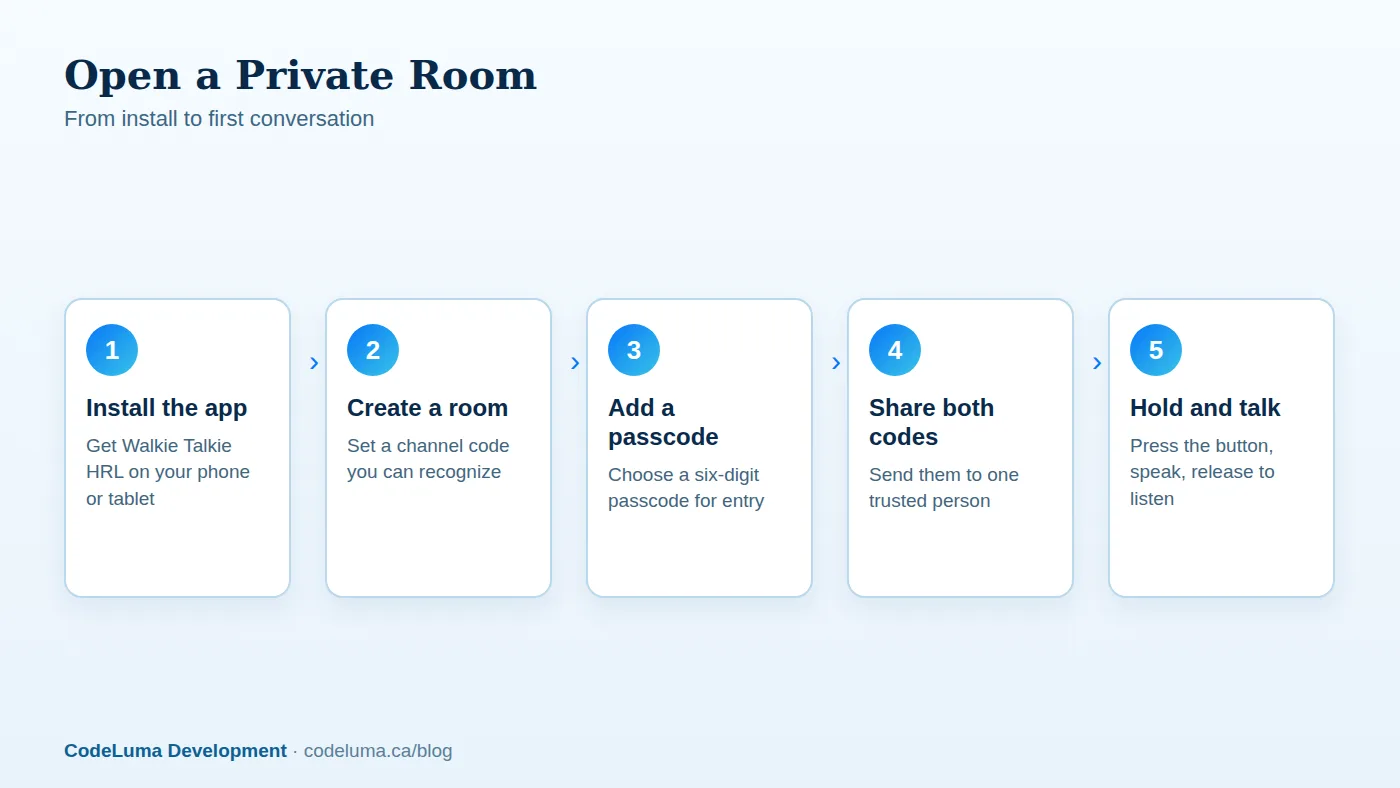
Before you can create a room, you need the app on the device you'll use most. On Android phones and tablets, install the Android app directly. On an iPhone, there is no separate app store download; instead you add a web app to your Home Screen following the iPhone install steps. Both routes land you in the same place: an icon on your home screen that opens straight into the app when you tap it. If you want a household display running in the background, the Big Screen app for Google TV, Android TV, and supported Chromebooks is worth a look too.
Choosing a Good Channel Code
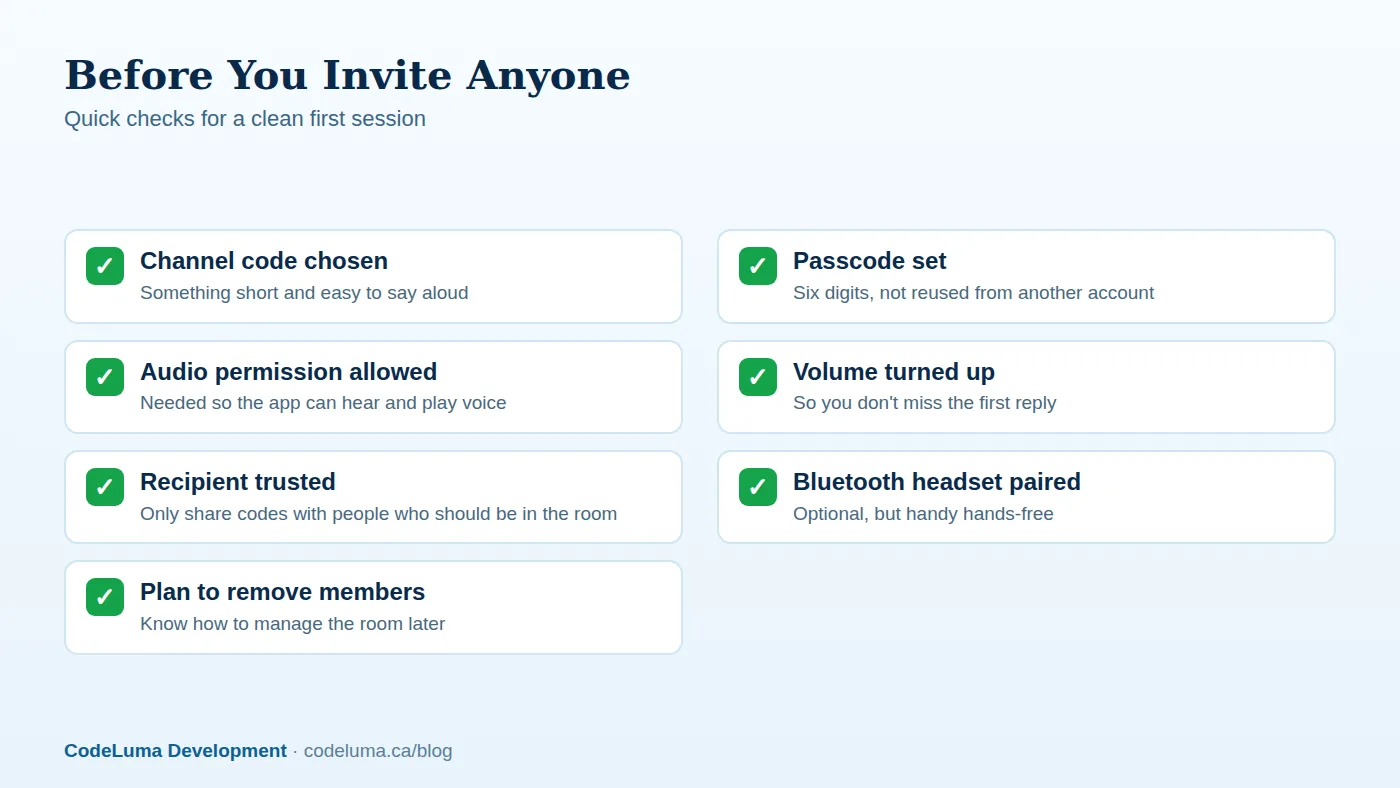
Your channel code is the label for the room, so pick something short, easy to say out loud, and specific enough that it won't be confused with another room you or your contacts might create later. A code tied to a purpose or a date works well for temporary use, something more permanent for an ongoing group like a family or a work team. Avoid anything so generic that a stranger might guess it by accident, and don't reuse the exact same channel code across unrelated groups, since that makes it easy to mix people up later.
Setting a Six-Digit Passcode
The passcode is what actually locks the door. Pick six digits that are not tied to something public about you, like a birth year or an address, and don't reuse a passcode from another account or service. Treat it the way you'd treat a door code: something you can change if it starts to feel too widely known. Because the channel code and passcode work together, someone would need both pieces of information to get into your room, not just one.
Inviting the First Person
Once the room exists, share the channel code and passcode with exactly one person to start, ideally over a channel you already trust, like a text message or a phone call rather than posting it somewhere public. Walk them through installing the app if they haven't already, then have them enter both codes to join. When they connect, do a quick hold-to-talk test: press the button, say something short, release, and confirm they heard it clearly. That one exchange confirms the whole loop is working before you add anyone else.
Good Habits for Sharing Codes
Only hand your room's codes to people who should actually be able to join. Resist the urge to post a channel code and passcode somewhere semi-public, like a group chat with people outside the intended group, since anyone who sees it can attempt to join. As your room's membership changes, the room owner can remove people who no longer need access, which matters for a work crew after a shift ends or a family situation that changes over time. If a passcode ever gets shared more widely than intended, the cleanest fix is creating a fresh room with a new passcode rather than trying to walk it back.
What Encryption in Transit Actually Buys You
Voice in Walkie Talkie HRL is encrypted in transit, meaning your audio is scrambled while it travels across the internet so it isn't sitting there in plain, readable form as it moves between devices. That's a meaningful layer of protection for everyday conversations, but it's worth being precise about what it is and isn't: this is not end-to-end encryption, and no online communication system, this one included, can promise absolute security. The private room's channel code and passcode are a separate, complementary layer, controlling who can even get into the conversation in the first place. For a plain-language walkthrough of this distinction, see Encrypted in Transit: What It Means for a Walkie-Talkie App.
Common Mistakes to Avoid
- Reusing a passcode from another account or another room, which makes it easier to guess and harder to track who has access to what.
- Posting codes somewhere public, like an open group chat or social post, instead of sharing them directly with the person joining.
- Skipping the audio permission prompt, which leaves the app unable to hear or play voice properly.
- Never revisiting membership, so people who no longer need the room stay in it indefinitely.
- Choosing a channel code that's too generic, which invites confusion with other rooms over time.
Rooms for Different Groups
The same setup process works whether the room is for a family coordinating during a trip, a work crew coordinating a job site, or security staff covering a venue or patrol route. Some supported private plans allow rooms of up to 100 participants, so the same basic pattern, channel code plus passcode plus a bit of housekeeping, scales from a two-person test to a much larger team without changing how it works. If you're setting one up for a household, Family Chatter Deserves a Private Room, Not a Public Feed covers the family-specific side of this in more depth.
A Quick Reminder on What This Isn't
Walkie Talkie HRL is built for everyday coordination, not emergencies. It is not an emergency-calling or guaranteed life-safety service, and it should never be treated as a replacement for 911 or a dedicated emergency radio system. Keep it in its lane, everyday talk, coordination, and staying in touch, and it does that job well.
Wrap-Up
Creating your first private room really is a short list of small decisions: pick a channel code, set a passcode, install the app, and invite one trusted person to test it with you. From there, the room is yours to grow, adding people as needed and removing them when their reason for being there ends. If anything about the setup feels unclear along the way, the how it works page walks through the same steps with more detail on permissions and audio.
Try Walkie Talkie HRL
Your phone already has everything it needs for this. Grab the {{svc:app_android|Android app}} or {{svc:app_iphone|iPhone web app}}, open a {{svc:private|private channel}}, and have someone join before your coffee gets cold.
- Private channels - access-controlled rooms with a channel code and six-digit passcode.
- How it works - install, allow audio, join a channel and hold to talk.
- Download the Android app - install Walkie Talkie HRL on your Android phone or tablet.
- Install on iPhone - add the web app to your iPhone Home Screen.
Private, instant and already in your pocket. Walkie Talkie HRL turns the phone you already own into a push-to-talk walkie-talkie. Voice is encrypted in transit; no online service can promise absolute security. It is not an emergency-calling service.