Encrypted Push-to-Talk for Guards on the Phones They Carry
A guard team's radio chatter carries a lot: post changes, incident details, who's covering a gap while someone's on break. If that chatter is easy for anyone nearby to pick up, it's not just noise, it's a liability. Walkie Talkie HRL runs push-to-talk over the phones your staff already carry, with voice encrypted in transit and private rooms locked behind a channel code and a six-digit passcode. Here's what that actually means for a guard team, and how to set it up so it fits your site.
Why Guards Are a Natural Fit for Phone-Based Push-to-Talk
Most guards already carry a smartphone for scheduling, incident photos, or checking in with a control room. Adding a security team channel means there's nothing new to issue, charge overnight, or track down when a shift ends. A supervisor can spin up a room for a single event or a standing post in minutes, and everyone on the roster joins with the app they already have installed.
What "Encrypted in Transit" Actually Means
When a guard holds the button and speaks, that audio is encrypted while it travels from their phone, across the internet, to the other phones in the room. That protects the conversation from casual interception on the network path between devices, which matters when your team is discussing patrol routes, access codes, or an incident in progress. It's worth being precise here: this is encryption in transit, not end-to-end encryption, and no online communication system can promise absolute or unbreakable security. If your site has its own compliance requirements around sensitive communications, treat this as one layer of protection, not a guarantee. For a deeper look at what this term does and doesn't cover, see our explainer on encryption in transit.
Private Rooms: Your Real Access Control
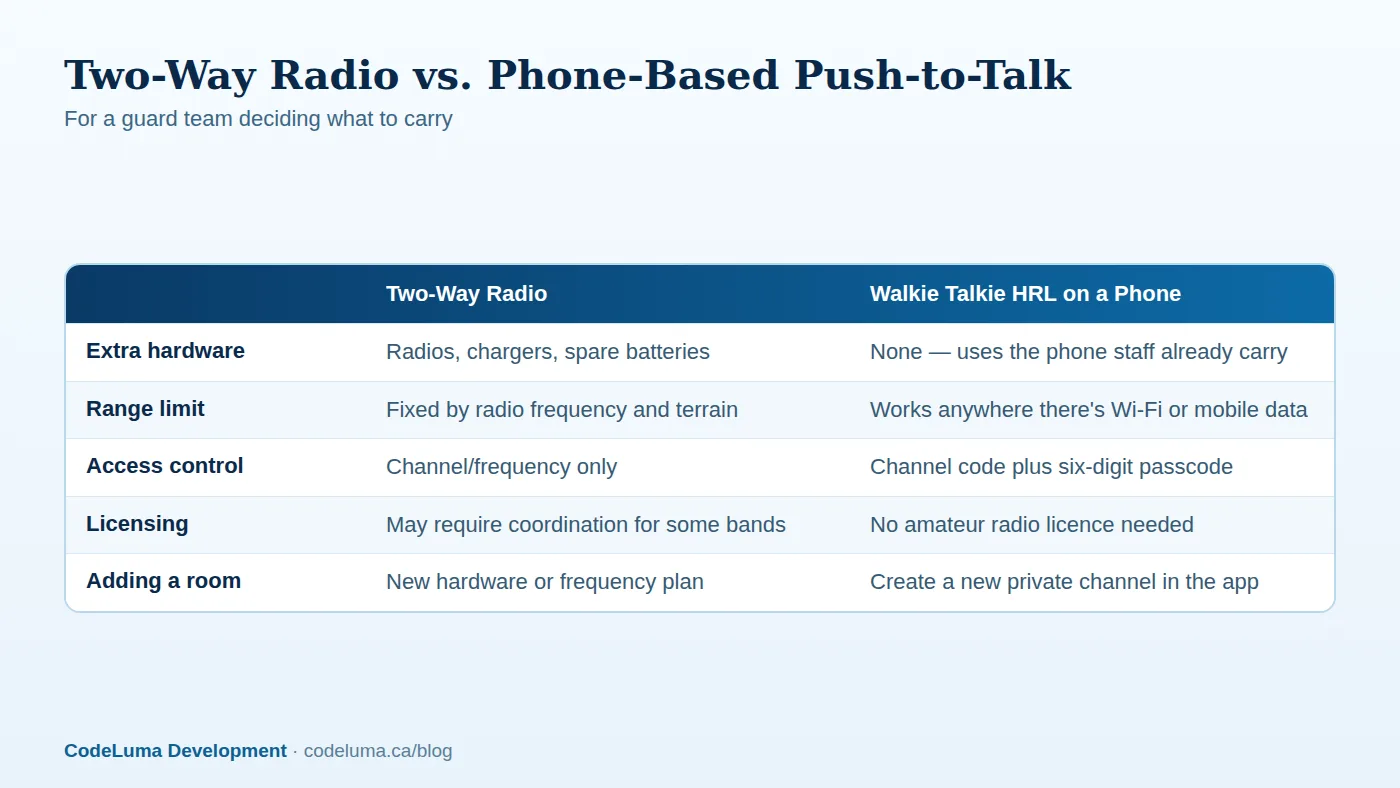
The encryption protects the audio in transit; the private room setup is what controls who can even join the conversation. Each private channel has a unique channel code plus a six-digit passcode, and on supported plans a room can hold up to 100 participants, enough for a large event or multi-building site. That's your actual access control: without both the code and the passcode, someone can't listen in, and room owners can remove anyone at any time.
Good Habits for Sharing Codes
A locked room is only as good as how carefully the keys are handled. A few habits go a long way for a guard team:
- Share codes person-to-person or through a controlled roster, not in a public chat, printed schedule, or anywhere a former employee might still see it.
- Don't reuse the same passcode across sites or seasons. A fresh passcode per contract, event, or rotation limits how far an old leak can reach.
- Remove people promptly when a guard is reassigned, finishes a contract, or leaves the company. This is the single most important habit on this list.
- Rotate the passcode periodically even if nothing has gone wrong, especially for standing posts that run for months.
Availability: The Advantage That Matters Most on Patrol
The bigger practical win for most guard teams isn't a feature, it's what's missing: extra gear. There are no radios to buy, no charging bank to manage, no spare units to hand out and collect at shift change. If a guard's phone has a signal, whether Wi-Fi in a building or mobile data outdoors, they can join the channel. That's the core pitch behind running push-to-talk without buying radios: the tool travels with the person, not with a piece of equipment that has to be checked out and returned.
Setting Up a Channel for a Guard Team
A practical rollout looks like this:
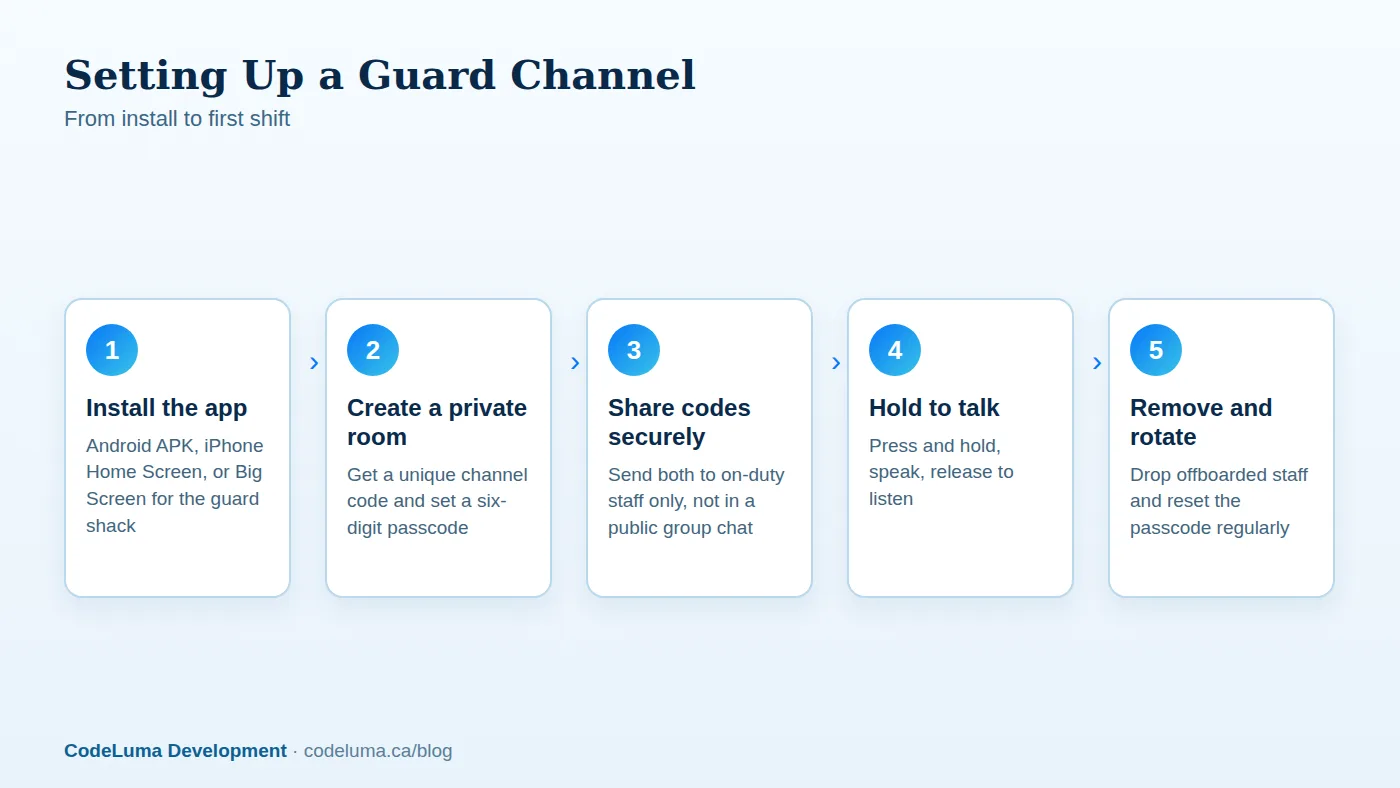
- Install the app on staff phones. Android staff can download the Android app directly; iPhone staff add it to their Home Screen as described on the iPhone install page.
- Create a private room for the site or shift, and record the channel code and passcode somewhere only supervisors can access.
- Share the code and passcode individually with each guard who needs access that shift.
- Do a quick radio check before the shift starts: everyone holds, speaks, releases, and confirms they're heard.
- At the end of a contract or when staffing changes, remove departed guards and rotate the passcode.
Coverage and Connection: What to Expect
Because this runs over Wi-Fi or mobile data, it needs an internet path to work; it cannot function in a true dead zone with no signal at all. In practice, most guarded sites, buildings, campuses, event grounds, have workable Wi-Fi or cell coverage in the areas where staff are posted. It's worth walking your actual site once with the app running before relying on it for a live event, so you know which stairwells or parking structures might need a quick check-in point instead.

Etiquette That Keeps a Guard Channel Useful
A channel full of cross-talk is as bad as no channel at all. A few etiquette basics keep it usable under pressure:
- Identify your post or position before your message, not after.
- Keep routine check-ins short; save detail for when it's actually needed.
- Pause half a second before pressing the button so the start of your message isn't clipped.
- If something urgent is happening, say so first, then give the details.
Common Mistakes to Avoid
A few missteps show up repeatedly when teams first move to phone-based push-to-talk:
- Treating it as an emergency line. This is not an emergency-calling or guaranteed life-safety service, and it does not replace 911 or your site's emergency radio system. Keep those procedures unchanged.
- Leaving old passcodes active after a contract ends or staff turn over.
- Letting phones run low on battery mid-shift with no plan for a backup device or charging point.
- Not checking background listening settings. On Android, whether the app keeps listening in the background depends on permissions and power settings, so it's worth confirming this is configured correctly on each guard's phone, not assumed.
A Quick Setup Checklist
Before your first shift on a new channel, confirm:
- App installed on every guard's phone, with notification and microphone permissions allowed.
- Private room created with a unique channel code and passcode.
- Codes shared individually, not posted anywhere public.
- A named person responsible for removing staff and rotating passcodes.
- A quick radio check done at the start of each shift.
- Emergency procedures unchanged and clearly separate from this channel.
Wrapping Up
For a guard team, the appeal of phone-based push-to-talk isn't just one thing, it's the combination: voice encrypted in transit, a private room locked behind a channel code and passcode, and the fact that it runs on hardware your staff already carry every shift. None of that replaces good judgment about who gets a code or how you handle an actual emergency, but it does give a guard team a private, always-available channel without adding a single piece of equipment to the gear list. Check how it works for the full setup walkthrough, or head to private channels to create your first room.
Try Walkie Talkie HRL
If your team already carries phones on patrol, that's all you need to try a private channel today: {{svc:app_android|download the Android app}} or {{svc:app_iphone|add it to your iPhone Home Screen}}, then set up a passcode-protected room in minutes. See {{svc:howto|how it works}} for the full walkthrough before your next shift.
- Security teams - patrol, venue and hospital communication.
- Private channels - access-controlled rooms with a channel code and six-digit passcode.
- How it works - install, allow audio, join a channel and hold to talk.
- Download the Android app - install Walkie Talkie HRL on your Android phone or tablet.
Private, instant and already in your pocket. Walkie Talkie HRL turns the phone you already own into a push-to-talk walkie-talkie. Voice is encrypted in transit; no online service can promise absolute security. It is not an emergency-calling service.