Android Walkie-Talkie Setup: Install to First Transmission

Most people already own the only hardware they need for a walkie-talkie: the phone in their pocket. Getting Walkie Talkie HRL running on Android takes only a few minutes, and once it's installed, holding a button and talking to a room full of people works almost exactly like the radios you remember, minus the extra gear. Here's the full path from download to your first "copy."
Why Android First
Android is the most common starting point for most teams and families setting this up, partly because the app installs directly as an APK rather than requiring a trip through an app store listing. If you're on an iPhone instead, the process is a little different; see installing on iPhone for that version. Everything in this guide assumes an Android phone or tablet with a working internet connection.
Step 1: Download the App
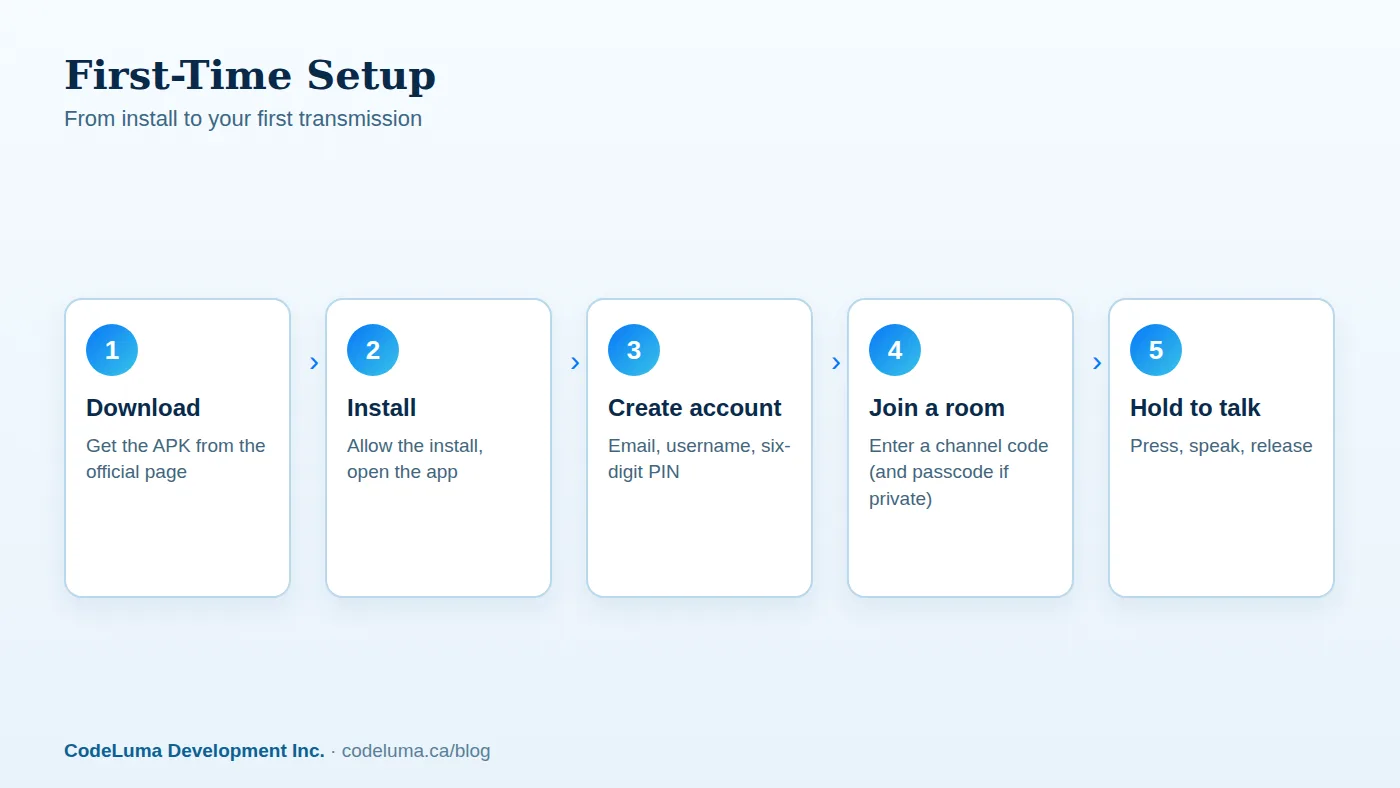
Go to the Android download page and get the APK file. Because it isn't distributed through the Play Store, your phone may show a warning about installing from an unknown source. That's a standard Android safeguard, not an error. You'll need to allow the install for this one file, the same as you would for any APK installed outside the store.
Step 2: Install and Open
Tap the downloaded file to start the install. Once it finishes, open the app from your home screen or app drawer. The first launch will ask for a couple of permissions, most importantly microphone access. Without that permission granted, you won't be able to transmit, so allow it when prompted.
Step 3: Create Your Account
Permanent accounts use an email address, a unique username, and a six-digit PIN. Pick a username you're comfortable sharing with teammates or family, since that's what others will see in a room. Write your PIN down somewhere safe if you're not using a password manager; you'll need it to sign back in on this device or a new one.
Step 4: Join Your First Room
Every room runs on a channel code. Public rooms are open to anyone who has the code. Private rooms add a six-digit passcode on top of the channel code, so only people you've shared both pieces with can get in. If someone has sent you a code to test with, enter it on the join screen; otherwise, explore a public room first to get comfortable with the interface before setting up something private. When you're ready to build your own protected space, private channels walk through creating a room that only your group can enter.
Step 5: Hold the Button and Talk
This is the part that feels instantly familiar. Press and hold the push-to-talk button, speak normally, and release when you're done. While you're holding the button, you're transmitting; when you let go, you switch to listening. Everyone else in the room hears you as you speak, not after a delay for processing or uploading a file. If you want the mechanics behind the connection, how it works breaks down the install-allow-join-talk flow in more detail.
A Quick Pre-Call Checklist
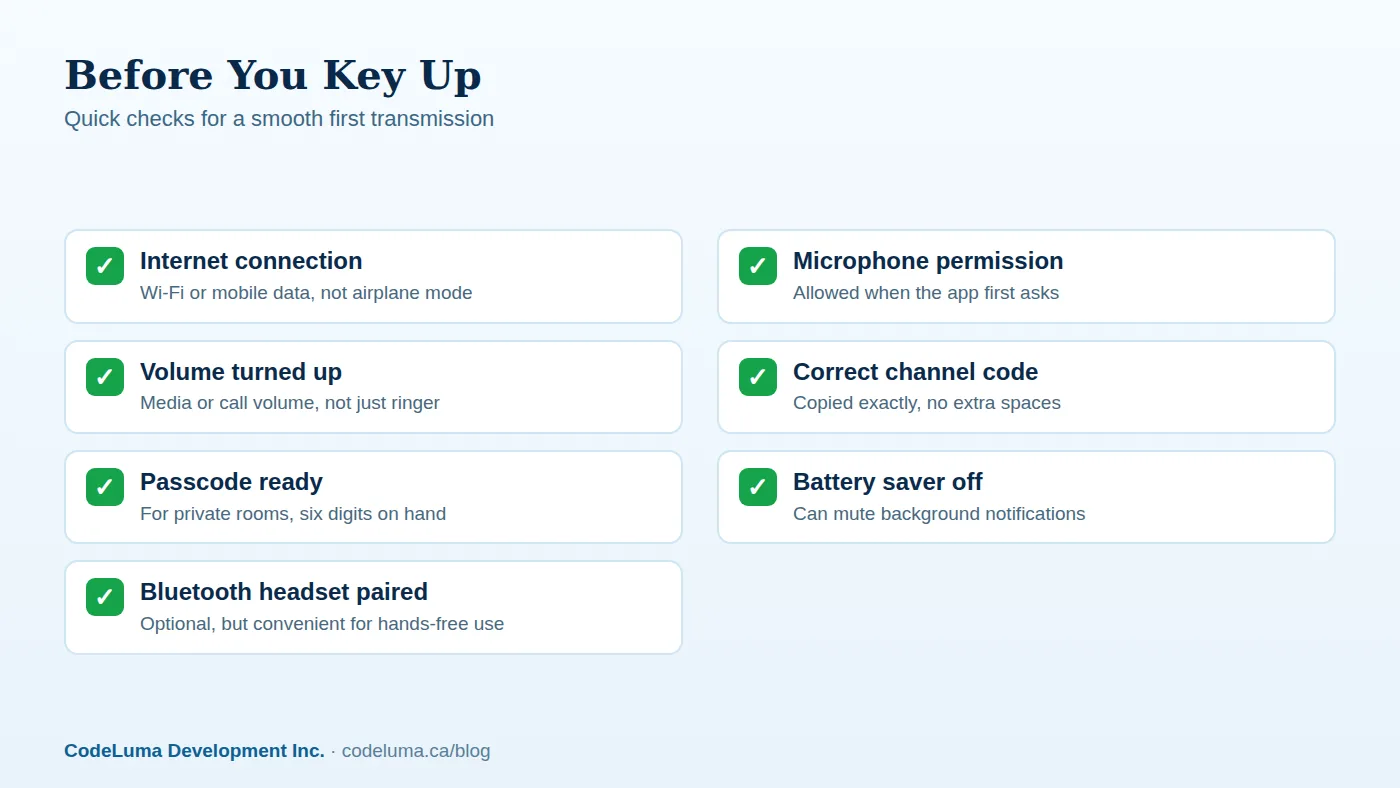
Before your first real conversation, run through a short check so nothing gets in the way mid-sentence:
Common Setup Mistakes
- Skipping the microphone permission. If you denied it during setup, go to your phone's app settings and enable microphone access manually.
- Typing the channel code wrong. Extra spaces or a mixed-up character will send you to the wrong room, or no room at all. Copy and paste when you can.
- Forgetting the passcode on a private room. The channel code alone won't get you into a protected room; you need both pieces.
- Leaving media volume low. Ringer volume and media volume are often separate settings on Android, and a muted media stream means a silent room.
- Aggressive battery saver settings. Some Android phones restrict background apps to save power, which can interrupt notifications while the app isn't on screen.

Using a Bluetooth Headset
If you're working with your hands or want a bit more privacy around other people, pair a Bluetooth headset before opening the app. Walkie Talkie HRL supports Bluetooth audio, so you can hold the push-to-talk button on your phone screen while listening and speaking through the headset, which is handy for anyone who needs their hands free, from warehouse crews to parents managing kids at an event.
Keeping Background Listening Reliable
Android gives users a lot of control over what apps can do when they're not the one on screen, and that's generally good for privacy and battery life. It does mean you may need to check your phone's permission and power settings if you want to keep receiving transmissions while the app is in the background. Look for battery optimization or "allow background activity" settings tied to the app and adjust them if you notice missed messages.
Understanding Encryption Before You Share a Code
Voice sent through the app is encrypted in transit, meaning it's protected while it travels across the internet rather than sitting out in the open the way an old-fashioned radio broadcast would. That's a meaningful privacy upgrade over a scanner-friendly frequency, but it's worth being accurate about what it does and doesn't mean: no online communication system, this one included, can promise absolute security. For a deeper look at what "encrypted in transit" actually covers, read our plain-language explainer. The practical takeaway for setup is simple: treat your channel code and passcode like a key, share them only with people who should be in the room, and remove anyone who shouldn't be there anymore.
From First Call to Everyday Use
Once you've made your first transmission and things feel natural, think about how you'll actually use the app day to day. Families might want one room for errands and pickups, explained further in our guide on building a private family room. Work crews often want a code that isn't easy to guess by outsiders standing nearby; our post on picking a strong channel code covers that. And if you ever want to compare the setup against a traditional two-way radio, our walkie-talkie comparison article lays out the differences plainly.
Wrapping Up
Getting from a blank phone to your first push-to-talk message is a short process: download, install, create an account, join a room, and press the button. The setup steps are mostly one-time tasks, and the habits that keep a room private, like guarding your passcode and removing people who no longer need access, take seconds once they're routine. From here, the natural next step is deciding whether you want a public room to experiment in or a private room built for your team or family from the start. If you run into questions along the way, the FAQ page covers compatibility, accounts, and audio issues in more detail.
Try Walkie Talkie HRL
Ready to try it yourself? {{svc:app_android|Download the Android app}}, set up a username and PIN, and key up on a free room before you create a private one. It takes less time than digging an old radio out of a closet.
- Download the Android app - install Walkie Talkie HRL on your Android phone or tablet.
- How it works - install, allow audio, join a channel and hold to talk.
- Private channels - access-controlled rooms with a channel code and six-digit passcode.
- Questions and answers - compatibility, accounts, rooms and audio.
Private, instant and already in your pocket. Walkie Talkie HRL turns the phone you already own into a push-to-talk walkie-talkie. Voice is encrypted in transit; no online service can promise absolute security. It is not an emergency-calling service.