No Radios to Buy: Start a Team Channel With Phones Only
A crew of six on a job site, a small security team covering a venue, a family heading to a crowded event — they all share the same problem. They need to talk to each other instantly, as a group, without digging out a phone and dialing a number. Traditionally that meant buying radios: one per person, chargers for all of them, a case to carry them in, and someone responsible for keeping the fleet charged and working. Walkie Talkie HRL skips all of that. If your team already carries phones, which almost every team does, you already have everything you need to start a private channel today.
Why "No Radios to Buy" Actually Matters
The appeal of push-to-talk has always been speed: hold a button, speak, release, and everyone hears you at once. Radios deliver that, but they come with overhead. Someone has to purchase a radio for every person, keep spares charged, replace batteries, and track down the unit that got left in a truck. A phone-based app removes nearly all of that overhead because the hardware already exists. Learn more about how it works and you'll see the whole flow is built around a device your team already carries, charges, and knows how to use.
What You Need Before You Start
There is no shopping list here. You need a phone each team member already owns, a Wi-Fi or mobile data connection, and about five minutes to set up a room. That's genuinely it. There's no pairing hardware, no proprietary charging dock, and no extra device to remember when you walk out the door in the morning.
Setting Up a Private Room in Five Steps
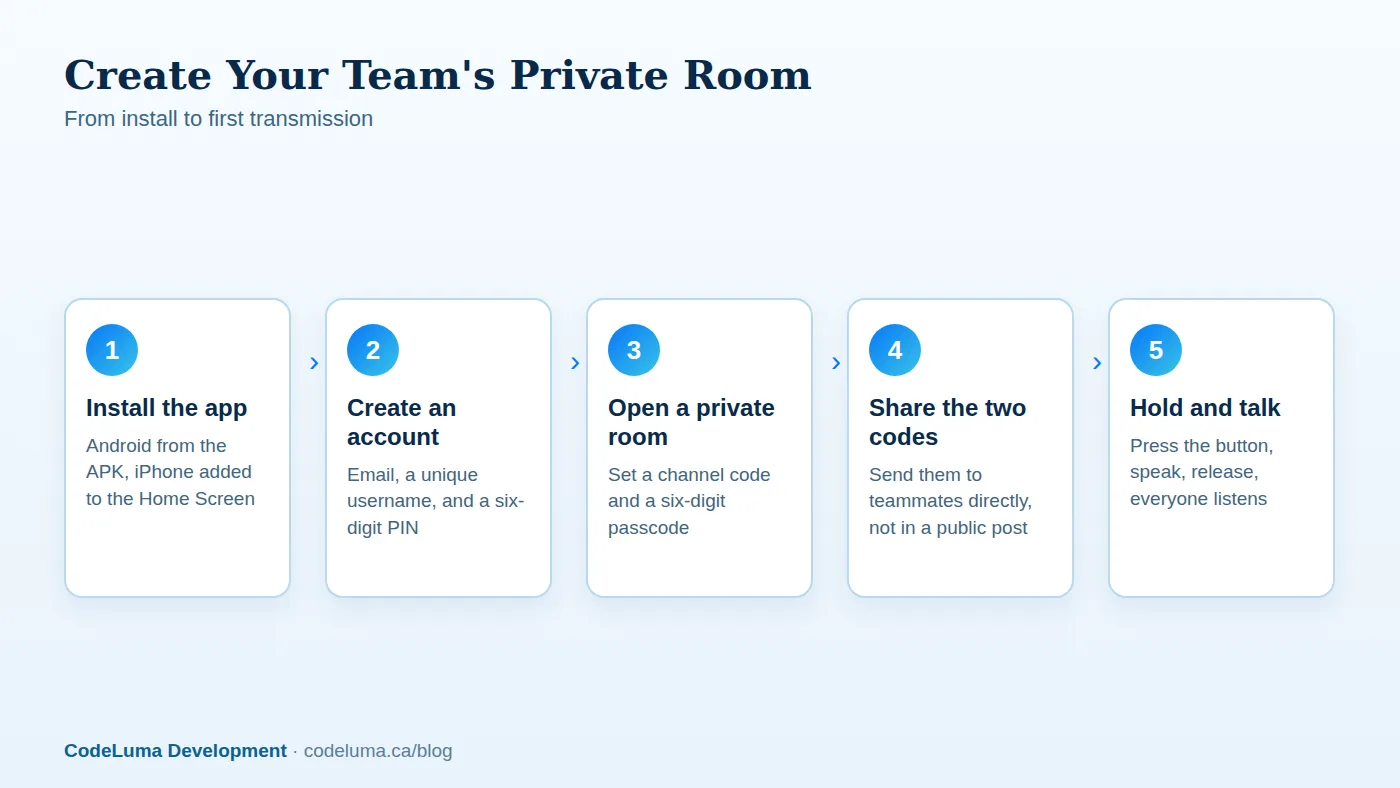
Getting a team on a shared channel is a short process, and the figure above walks through it. In practice, one person — call them the room owner — installs the app, creates an account with an email, a unique username, and a six-digit PIN, then opens a private channel. That generates a channel code and a six-digit passcode. From there it's a matter of sharing those two pieces of information with the rest of the team and confirming everyone can hear a test transmission.
How the Channel Code and Passcode Work Together
Private rooms use two separate pieces of information: a unique channel code that identifies the room, and a six-digit passcode that controls entry. Think of the channel code as the room's address and the passcode as the key. Someone would need both to get in, which is why it's worth treating the passcode the way you'd treat a door key rather than something you post where anyone could see it. If you want a closer look at setting this up for a specific trip or outing, this walkthrough on creating your first private room covers the same process in more depth.
What Encryption in Transit Means for Your Team Chatter
Voice sent through Walkie Talkie HRL is encrypted in transit, meaning your audio is protected as it travels over the internet between your phone and the people listening on your channel. That matters because a job-site crew coordinating a delivery, or a security team discussing where to position someone, is talking about things that don't need to be broadcast to strangers. It's worth being clear about what this does and doesn't mean: encryption in transit protects the path your voice takes across the network. No online communication system, this one included, can promise absolute security, and we won't claim otherwise. What a private room adds on top of that is access control — the channel code and passcode mean only people you've actually shared those with can join in the first place.
Sharing Access the Right Way
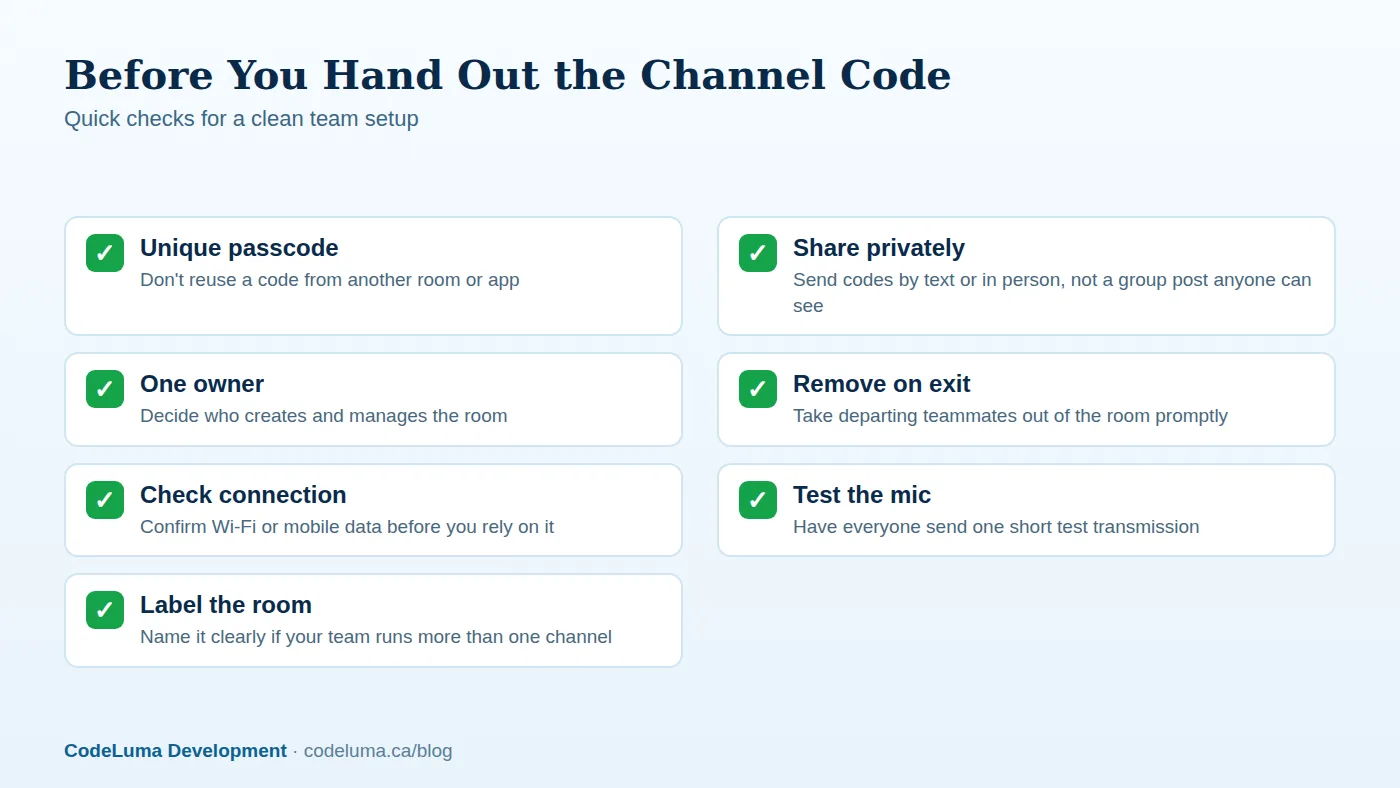
How you hand out the channel code and passcode matters as much as the fact that they exist. Send them directly to teammates by text message or in person, not in a group email thread or a public post where anyone scrolling past could pick them up. If your team runs multiple rooms — one for daytime operations, say, and another for an after-hours event — give each one its own passcode rather than reusing the same six digits everywhere. The checklist above is a good reference to run through before you hand codes out for the first time.
Common Setup Mistakes to Avoid
A few habits cause most of the friction teams run into when they start out:
- Posting the passcode somewhere public. A shared document visible to the whole company or a public chat channel defeats the point of a private room.
- Reusing one passcode everywhere. If the same six digits protect three different rooms, removing access from one doesn't actually lock anyone out of the others.
- Forgetting to test audio first. A quick test transmission before the real shift starts catches microphone or permission issues early.
- No single owner. Without someone responsible for the room, nobody remembers to update the passcode or remove people who've left the team.

Keeping the Room Clean as People Come and Go
Teams change. Contractors finish a job, seasonal staff move on, a family member's trip ends. Room owners can remove people from a private room, and it's worth doing that promptly rather than letting old participants linger. If a passcode has been floating around for a while, or if you're not confident who still has it, generating a fresh one and reinviting your current team is a quick reset. Some supported private plans allow up to 100 participants, so even larger teams running one coordinated channel have room to work with.
Everyday Etiquette for a Shared Channel
A private room runs smoothly when everyone follows a few basic habits: keep transmissions short, pause briefly before releasing the button so the first word isn't cut off, and avoid talking over someone who's already mid-transmission. For business teams running a busy shift, agreeing on these habits ahead of time keeps the channel useful instead of noisy.
From Phones to a Break-Room Screen
Most of a team's day-to-day use happens on the phones in their pockets, but it's worth knowing the same account works more broadly. Walkie Talkie HRL is available for Android phones and tablets, installs as a web app on iPhone Home Screens, and there's a Big Screen app for Google TV, Android TV, and Chromebooks with Android app support — handy for a break room or dispatch desk where a screen is already mounted on the wall.
A Few Minutes, No Shopping List
The whole appeal of phone-based push-to-talk is how little stands between deciding to coordinate as a team and actually doing it. No radios to order, no chargers to distribute, no spares to track down when one goes missing. Install the app, open a private room, share the code and passcode with the people who need them, and your team is talking. That's the entire setup, and it works with hardware everyone already has charging on their nightstand tonight.
Try Walkie Talkie HRL
Your team's phones are already capable of this. Download Walkie Talkie HRL on {{svc:app_android|Android}} or {{svc:app_iphone|iPhone}}, create a private room, and share the code with your crew to be talking in minutes.
- How it works - install, allow audio, join a channel and hold to talk.
- Private channels - access-controlled rooms with a channel code and six-digit passcode.
- Download the Android app - install Walkie Talkie HRL on your Android phone or tablet.
- Install on iPhone - add the web app to your iPhone Home Screen.
Private, instant and already in your pocket. Walkie Talkie HRL turns the phone you already own into a push-to-talk walkie-talkie. Voice is encrypted in transit; no online service can promise absolute security. It is not an emergency-calling service.